If you run a WooCommerce store with multiple currencies, you know that exchange rates can fluctuate constantly. By default, WooCommerce only stores the order total in the currency used at checkout, which means you might lose track of the actual conversion rate applied at that moment. This can make accounting, reporting, or analyzing profitability across currencies tricky.
A simple solution is to save the exchange rate used for each order directly in the order meta. This way, you can always see the exact rate applied when the customer paid, calculate your earnings in your main store currency, and avoid discrepancies caused by later rate changes.
In this snippet, we’ll show you how to capture the exchange rate at checkout and save it with the order. This is particularly helpful for stores that report in a single currency, do accounting in multiple currencies, or want precise historical financial records.
PHP Snippet: Save WooCommerce Order Exchange Rate
This snippet automatically saves the exchange rate applied for each WooCommerce order, regardless of the currency used at checkout. It reads the main store currency from WooCommerce settings and calculates the conversion rate relative to that.
The exchange rate is then stored in a generic order meta field named _order_currency_rate, making it easy to reference later for accounting, reporting, or profitability analysis.
By saving the rate at the moment of purchase, you ensure your financial records remain accurate even if exchange rates fluctuate in the future. This snippet works with any currency setup in WooCommerce.
/**
 * @snippet       Get WooCommerce order currency exchange rate
 * @tutorial      https://businessbloomer.com/woocommerce-customization
 * @author        Rodolfo Melogli, Business Bloomer
 * @compatible    WooCommerce 10
 * @community     Join https://businessbloomer.com/club/
 */

add_action( 'woocommerce_checkout_create_order', 'bbloomer_maybe_save_exchange_rate', 10, 2 );

function bbloomer_maybe_save_exchange_rate( $order, $data ) {

    // Get main store currency
    $main_currency = get_option( 'woocommerce_currency' );

    // Get order currency
    $order_currency = $order->get_currency();

    // Save exchange rate with the order
    if ( $order_currency !== $main_currency ) {
        $xml = @simplexml_load_file( 'https://www.ecb.europa.eu/stats/eurofxref/eurofxref-daily.xml' );
        if ( ! $xml ) return;
        foreach ( $xml->Cube->Cube->Cube as $cube ) {
            if ( (string) $cube['currency'] === $order_currency ) {
                $rate = (string) $cube['rate'];
                $order->update_meta_data( '_order_currency_rate', $rate );
                $order->save();
                break;
            }
        }
    }

}
Demo
On my test website, the main currency is EUR. I also have a custom currency switcher on my classic checkout page.
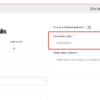
So, I place a new order in USD and with the snippet above, I can now see the value of the “_order_currency_rate” meta inside the order admin page “Custom Fields” section:

Value is 1.1575, and in fact as of now (November 12, 2025 at 10am Italy time), it’s the correct exchange rate: 1 EUR = 1.1575 USD.
Now I can use this in my PDF invoice or for accounting purposes, because I may need the equivalent EUR value!