WooCommerce: Show Additional Button @ Mini Cart

Looking to enhance the functionality of your WooCommerce store’s mini cart widget?

Adding an additional button can provide a smoother user experience and increase conversion rates. Whether you want to offer quick access to the shop page, a deals page, or a shortcut to your contact form – customizing the mini cart with an extra button can be powerful.

In this tutorial, we’ll walk you through the steps to add an additional button to your WooCommerce mini cart. This easy-to-follow guide will help you boost user engagement and streamline your customers’ shopping journey.

Continue reading WooCommerce: Show Additional Button @ Mini Cart

WooCommerce: Get Products On Sale Via PHP

We’ve already seen how to programmatically assign the “Sale” category to WooCommerce products on sale. That snippet actually uses the “shortcut” function we’re talking about today, wc_get_product_ids_on_sale().

This is a super helpful way to get something without complex queries or foreach loops. So I’d like to study its codebase, see what it returns, and finally test it and print something via a shortcode.

Enjoy!

Continue reading WooCommerce: Get Products On Sale Via PHP

WooCommerce: Add Custom Tab @ WooCommerce Settings Page

WooCommerce offers a comprehensive set of settings organized into several tabs within the WordPress admin dashboard: General, Products, Shipping, Taxes, Payments, Accounts & Privacy, Emails, Integration, Advanced.

These are the core WooCommerce settings tabs. Depending on your specific setup and any additional plugins you might be using, you might see additional custom tabs as well.

Which is exactly what we’re doing today – creating a custom tab!

By adding a dedicated section within the WooCommerce settings, you can organize your custom settings and keep everything neatly categorized and consistent. This not only improves your own workflow but also makes it easier for any future collaborators to manage your custom options.

This tutorial will guide you step-by-step through the process of creating a custom tab in your WooCommerce settings. We’ll cover everything from setting up the basic structure to implementing functionalities like saving your custom options.

Enjoy!

Continue reading WooCommerce: Add Custom Tab @ WooCommerce Settings Page

WooCommerce: How to Sync Products, Stock and Orders Between Several Stores

Running multiple WooCommerce stores can be a recipe for success, but keeping your products and stock levels synchronized across them can quickly turn into a nightmare.

Imagine the frustration of a customer trying to buy a product that shows “in stock” in one store, only to find it out of stock when they checkout. Yikes.

But fear not! This tutorial is your guide to conquering inventory chaos with product and stock syncing. We’ll dive into the amazing benefits of syncing your WooCommerce stores (e.g. products, stock, orders, etc.) so you can streamline your operations and watch your sales grow.

This multi-store functionality typically requires the use of additional plugins or services designed to manage multiple WooCommerce sites – one such solution is the WooMultistore plugin.

Continue reading WooCommerce: How to Sync Products, Stock and Orders Between Several Stores

WooCommerce: Maximize Sales with Deep Customer Data Insights

WooCommerce is far from just another ecommerce platform, it is a powerhouse that runs on WordPress, and brings with it limitless possibilities when it comes to operating a high-caliber online retail operation.

One aspect of the platform that is often ignored and underutilized is its remarkable data-harnessing capabilities. 

When combined with the magic of data, WooCommerce sites can predict what their customers need, even before they know it themselves, adding substantial value, while improving cart sizes, margins, and profitability in the process.

In this article, we take a look at what data depth is, and how to make it work with WooCommerce to enhance campaigns and profitability in the long run.

Continue reading WooCommerce: Maximize Sales with Deep Customer Data Insights

WooCommerce: Add Checkout Payment Section Heading

There are a couple of reasons why the default WooCommerce checkout page doesn’t have a separate heading for the payment section.

One is about design; WooCommerce might be aiming for a clean and uncluttered checkout process. A dedicated heading might add visual weight to the page, potentially making it feel more complex. By omitting the heading, they keep the focus on the actual payment fields.

The other is about logic: the order of information on the checkout page is designed to be logical. Shipping information naturally follows the billing address section, and most users inherently understand this as the payment section.

However, the lack of a heading can be a point of contention. Some users might prefer a clearer distinction between sections. And a call to action above the payment options can maybe help you convert better.

Let’s do it.

Continue reading WooCommerce: Add Checkout Payment Section Heading

WooCommerce: Remove “add-to-cart=123” URL Parameter After Add to Cart

The “add-to-cart” parameter in WooCommerce is used to create a custom URL that adds a specific product to the shopping cart. The “123” value is the product ID, and you can even specify a custom quantity. By clicking a link with this parameter in the URL, the user can add the specified product (ID# 123 in this example) to their cart without having to navigate to the product page itself.

The problem is that WooCommerce itself doesn’t automatically remove the “add-to-cart” parameter after a successful add to cart, and if you reload the page you will add to cart again! So, let’s see how we can remove this parameter in case you disabled the “redirect to cart” option.

Continue reading WooCommerce: Remove “add-to-cart=123” URL Parameter After Add to Cart

WooCommerce: Exclude Shipping Method From Specific User Role

WooCommerce offers a robust shipping system, but what if you want to tailor it based on the logged in user role?

In this blog post, we’ll show you how to exclude specific shipping methods from users with a particular role. This allows you to, for example, offer free shipping only to VIP members or restrict express delivery options to regular customers.

All you need is the user role slug (WordPress Dashboard > Users -> All Users > above the user list table you’ll see a horizontal list displaying the current user roles available on your site (e.g., Administrator, Editor, Author). Hover on one of them and see the URL, which will contain the exact slug e.g. “customer”) and the shipping rate ID you wish to disable (e.g. “flat_rate:9”. For more info you can find out how to find IDs here: https://businessbloomer.com/woocommerce-disable-free-shipping-if-cart-has-shipping-class).

Enjoy!

Continue reading WooCommerce: Exclude Shipping Method From Specific User Role

WooCommerce: Get All Variations For A Given Product

When you deal with WooCommerce variable products and custom code, you may need to programmatically access all the variations based on a given (parent) product ID.

This post dives into the world of WooCommerce product variations and shows you two powerful PHP methods to retrieve all the variations associated with a specific product ID.

We’ll explore several approaches, and by the end, you’ll be equipped to effortlessly handle variations in your code, based on what exact output you need. Enjoy!

Continue reading WooCommerce: Get All Variations For A Given Product

WooCommerce: Empty Cart Redirect

An empty WooCommerce Cart page can be frustrating for customers, especially if they’ve been browsing and adding items to their cart.

Redirecting them to a relevant page, like the Shop page, can help them continue shopping and potentially complete a purchase.

The redirect page can be used to showcase ongoing sales, promotions, or new products that customers might be interested in. This can help generate interest and encourage customers to make a purchase.

So, let’s see how we can redirect users from the empty Cart page to another page on the same website. Enjoy!

Continue reading WooCommerce: Empty Cart Redirect

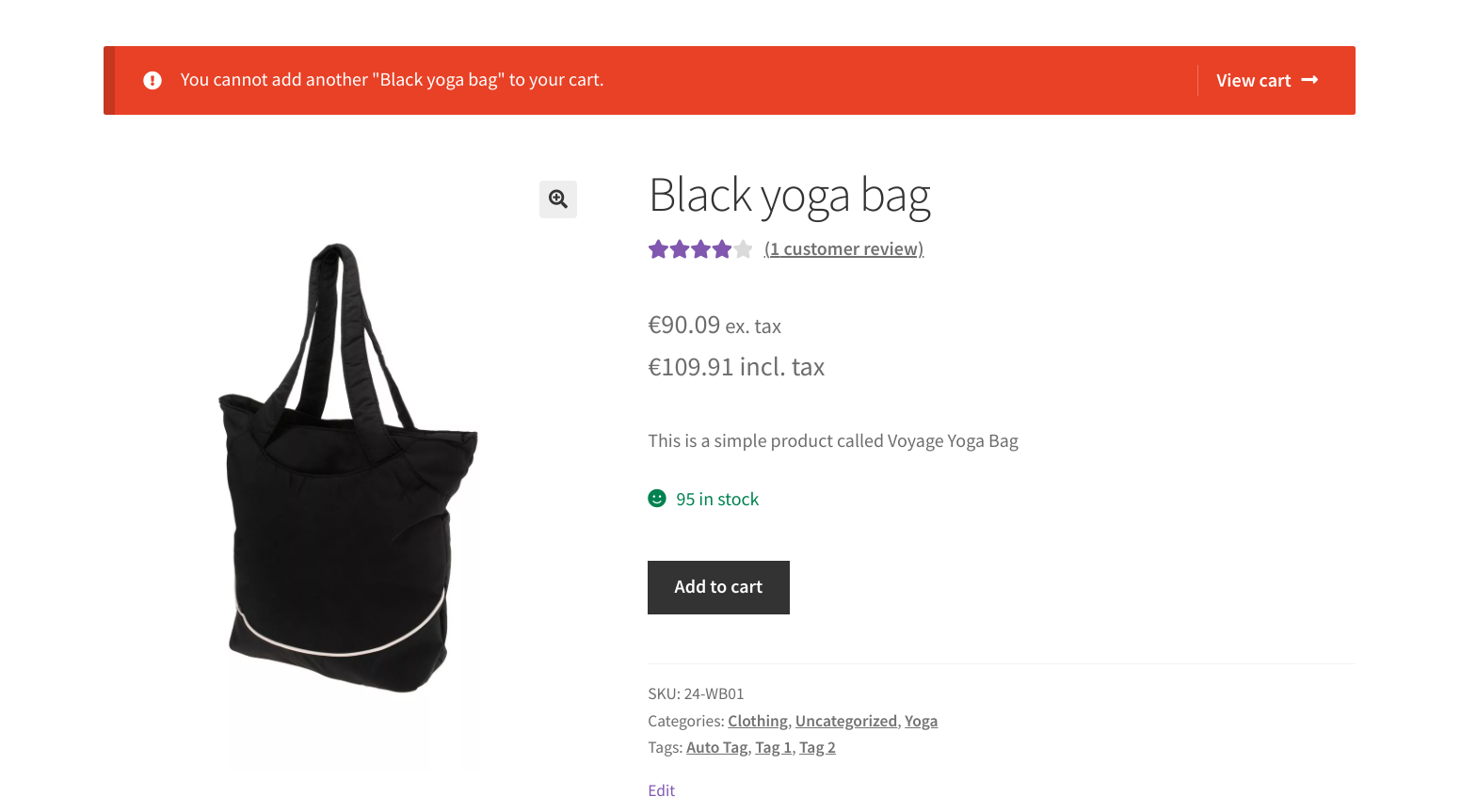
WooCommerce: Customize The “You cannot add another __ to your cart” Notification

If a WooCommerce product is set to “sold individually” (i.e. the “Limit purchases to 1 item per order” checkbox is checked in the edit product page) and is already in the cart, the “You cannot add another product to your cart.” notification will appear if you try to add it to cart again, which is fair.

This message appears by default in WooCommerce. There is a workaround to disable it completely, but you can also customize the wording (which is what we’re covering next).

In fact, this notification comes with a PHP filter, which means we can override the content and adapt it to our user base and/or brand tone. Enjoy!

Continue reading WooCommerce: Customize The “You cannot add another __ to your cart” Notification

WooCommerce: Redirect URL With SKU To Single Product Page

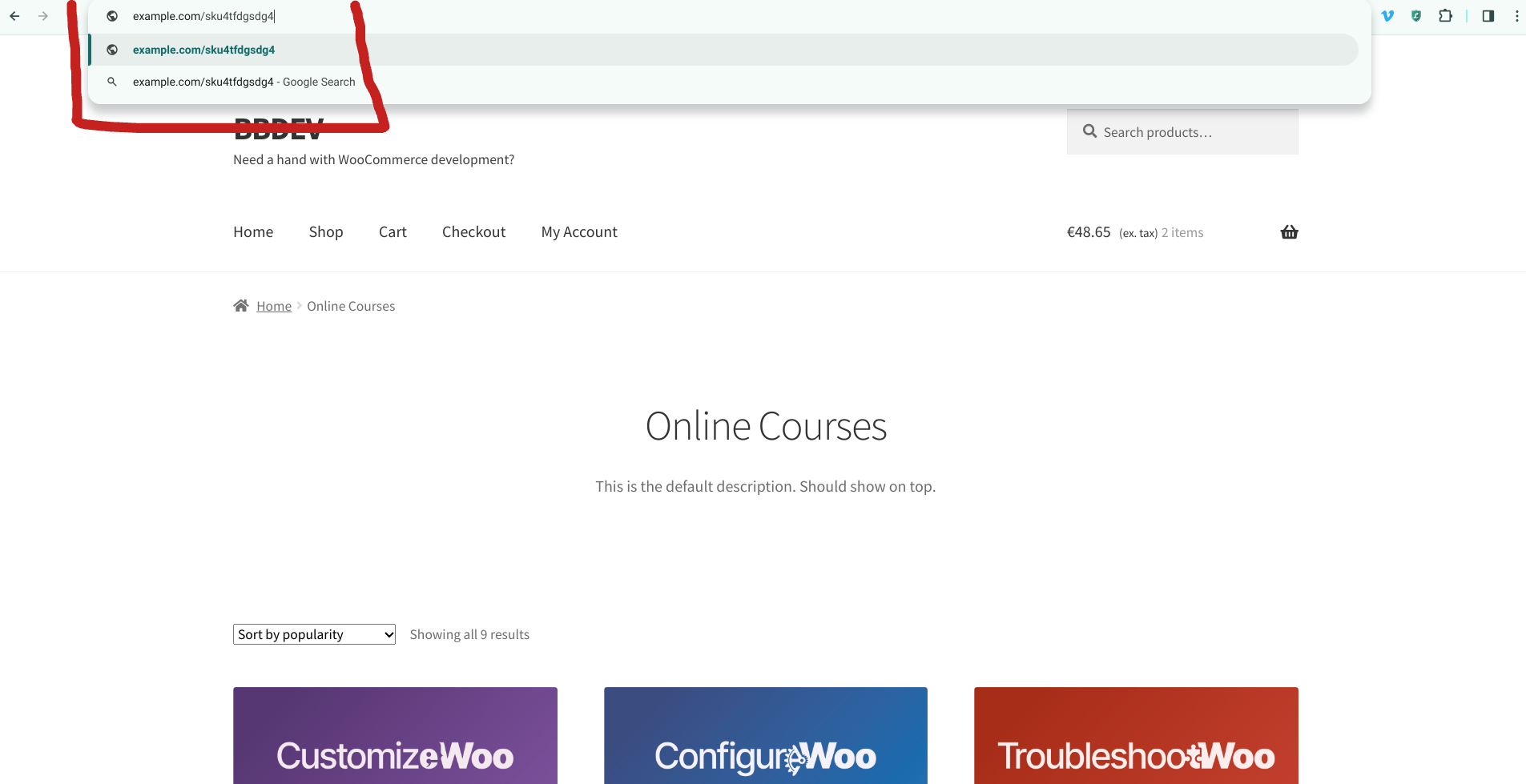
Let’s say your WooCommerce product has the following permalink: example.com/shop/t-shirts-tops-and-blouses/t-shirt-casual-v-neck-longsleeve-green-medium-cotton-stretch

Wouldn’t it be shorter, more fun and neater if you could also reach the same exact single product page by using example.com/sku00001 in the browser bar, where “sku00001” is the product SKU?

Well, in today’s snippet we will create a simple redirect from a custom URL that contains the product SKU to the product page, so that you can use the URL “shortener in your email marketing, display advertising, blog posts and anywhere you want to show a “pretty link” instead of a full, long, boring product page URL.

Enjoy!

Continue reading WooCommerce: Redirect URL With SKU To Single Product Page

WooCommerce, Shopify, Wix: A Step-by-Step Guide to Launching Your Ecommerce Business

Almost 25% of retail sales are expected to happen online by 2026, so you should create a web store if you run a small business. With the right tools, any merchant can start selling online. 

A good ecommerce website-building platform will let you list products, process payments, and organize shipping without leaving your home or store. 

But with so many platforms – WooCommerce, Shopify, Wix, and more – choosing the right one can feel overwhelming.

This guide focuses more on the steps that are required to publish your first ecommerce website with any of these solutions, so you can hit the ground running and start selling today!

Continue reading WooCommerce, Shopify, Wix: A Step-by-Step Guide to Launching Your Ecommerce Business

WooCommerce: Rename The “Add to cart” Button Label

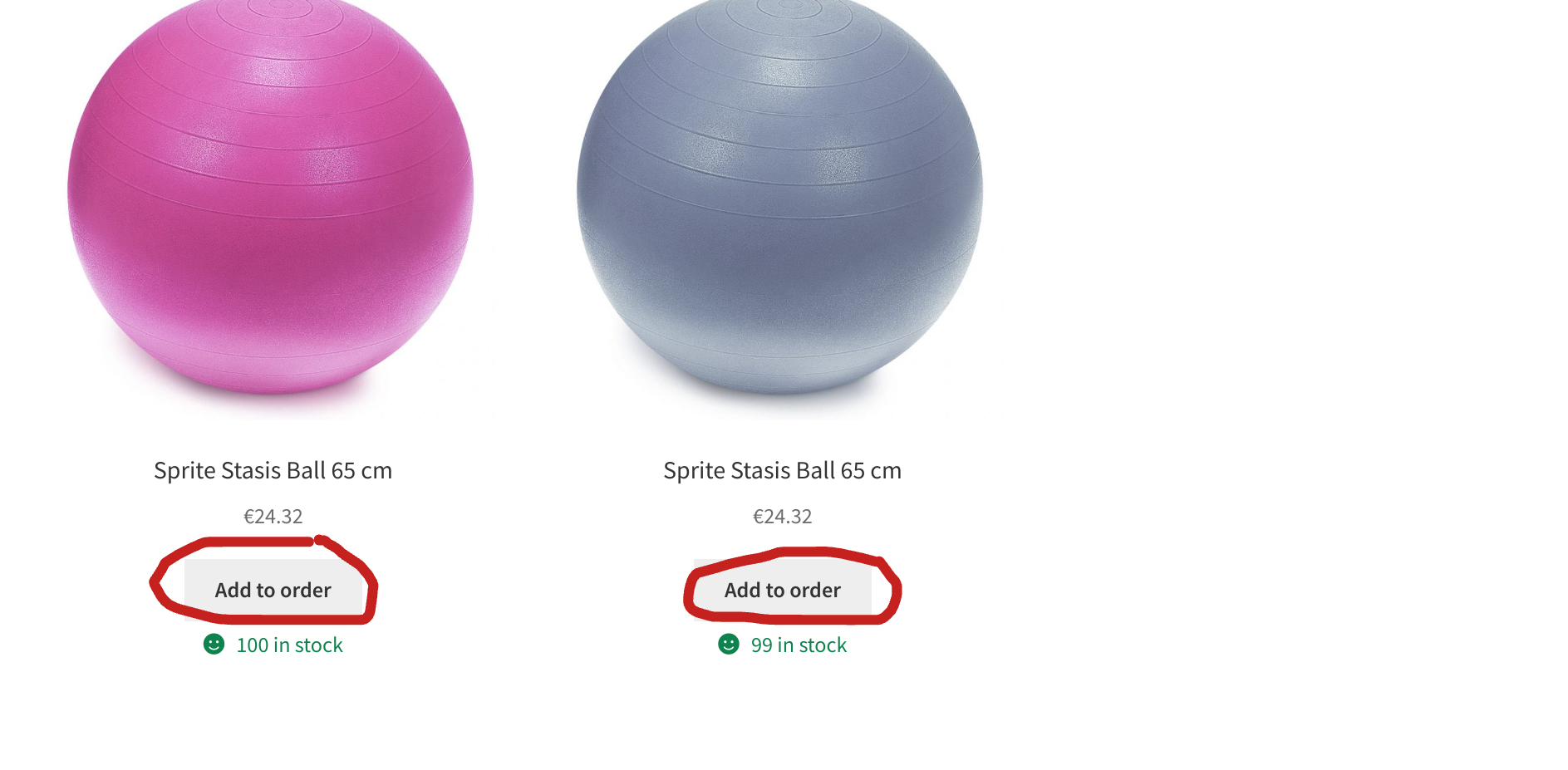
The “Add to Cart” button label cannot be changed from the WooCommerce settings unfortunately. Thankfully, the simple code below will allow you to change it to whatever you wish e.g. “Add to Basket” or “Add to Order”.

We saw in the past how to rename the “Add to Cart” label conditionally or how to add an icon to it, but this time I’d like to change the whole wording.

By customizing the “Add to Cart” button label, you can influence user behavior and potentially increase sales in your WooCommerce store.

The new label should clearly communicate the action the user takes when clicking the button, and possibly use strong verbs and persuasive language to encourage users to add products to their cart. Besides, you have the chance to maintain consistency with your overall brand voice and tone.

So, let’s see how it’s done. Enjoy!

Continue reading WooCommerce: Rename The “Add to cart” Button Label