WooCommerce: How To Change Product Image Sizes

WooCommerce lets you resize the product images on Single Product and Shop pages from Appearance > Customize > WooCommerce > Product Images.

Besides, you don’t have to manually regenerate the images after resizing them with an additional plugin, as WooCommerce can crop, resize and automatically regenerate image sizes out of the box.

Despite this seems easy enough, it often happens that themes or plugins may override the “Customizer” settings, and even hide them entirely, which causes a lot of confusion.

In this post, we’ll take a look at the default WooCommerce image settings, and finally with a list of FAQ we’ll try to cover all possible scenarios in case you can’t find a solution. Got a question? Feel free to use the comment area!

Continue reading WooCommerce: How To Change Product Image Sizes

WooCommerce: Enable Holiday / Pause / Vacation Mode

Sometimes, just like physical stores, your WooCommerce website may need a few days off!

And instead of saying nothing and getting stuck with unwanted orders and tons of customer support, maybe you can temporarily pause your WooCommerce store.

In WooCommerce words, this means hiding the add to cart buttons (one line of code) and also show a little notice on every WooCommerce page (one simple setting).

In this way customers are informed that the store is on hold, preventing misunderstandings about order processing times.

Enjoy!

Continue reading WooCommerce: Enable Holiday / Pause / Vacation Mode

WooCommerce: Add Custom Product Fields (e.g. RRP) Without a Plugin

The manufacturer’s suggested retail price (MSRP), or the recommended retail price (RRP), is the price at which the manufacturer recommends that the retailer sells the product at. You might have seen this in an ad, on a magazine, on a price tag: “RRP: $50. Our price: $39!”.

WooCommerce entrepreneurs can take advantage of this “marketing trick” too. The only problem is: how do we show this “extra field” on the single product page AND in the product edit page, so that the website owner can add this easily?

Continue reading WooCommerce: Add Custom Product Fields (e.g. RRP) Without a Plugin

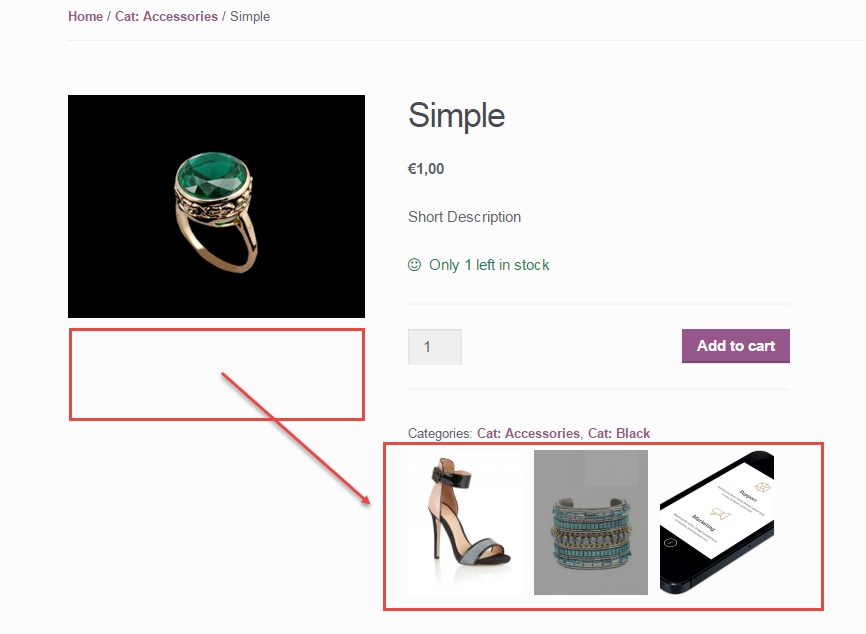
WooCommerce: Display Product Gallery Vertically @ Single Product Page

Today’s challenge has been on my to-write list for quite some time, and I’m thrilled to finally tackle it. This topic comes from a request by one of Business Bloomer’s engaged subscribers, whose input inspired me to create a practical, no-nonsense tutorial for everyone.

In this guide, we’ll address a common customization issue: aligning the “Product Gallery” thumbnails to the side of the main Single Product Page image, regardless of the device being used. For WooCommerce store owners and developers, ensuring an optimized product page layout is essential for creating a better user experience. With this solution, you can achieve a polished, responsive design that enhances both functionality and aesthetics.

Let’s dive into the step-by-step process to implement this effective and versatile adjustment.

Continue reading WooCommerce: Display Product Gallery Vertically @ Single Product Page

WooCommerce Visual Hook Guide: Single Product Page

Here’s a visual hook guide for the WooCommerce Single Product Page. This is part of my “Visual Hook Guide Series“, through which you can find WooCommerce hooks quickly and easily by seeing their actual locations (and you can copy/paste). If you like this guide and it’s helpful to you, let me know in the comments!

Now that you know the product page hooks, you can override the WooCommerce Single Product Page via your child theme’s functions. You can remove default elements (for example, the featured image, the add to cart form, related products…), you can add your custom elements by picking the correct positioned “hook” and triggering your function, and you can even “move” existing elements. Need a video tutorial? Watch it now →

Continue reading WooCommerce Visual Hook Guide: Single Product Page

WooCommerce: Edit “You may also like…” Heading @ Single Product Page

Since WooCommerce 4.1, there is now an easy way to edit the “You may also like…” WooCommerce string that appears on the Single Product Page, thanks to a brand new “PHP filter”. Kudos to Damien Carbery for reporting this new method.

So, as usual, simply copy/paste the snippet below in your child theme’s functions.php and it will do what it says on the tin. Enjoy!

Continue reading WooCommerce: Edit “You may also like…” Heading @ Single Product Page

WooCommerce: Edit “# in stock” @ Single Product Page

I’ve come across many code snippets that modify the “In Stock” message on the WooCommerce single product page. However, most of them only change part of the text and leave the quantity untouched.

In some situations, that might be enough—but in my case, I needed a more precise and polished result. Specifically, I wanted to completely replace the default “X in stock” text with a custom string that reads “Quantity: X”. This not only changes the wording but also adjusts the order of the information to better fit the site’s style and tone.

It’s a small detail, but these subtle changes can significantly improve user experience and make your store feel more professional.

Thankfully, WooCommerce offers a useful filter that allows us to target and customize this specific output. If you’re looking to achieve a similar result and want full control over the stock message, here’s the PHP snippet I used.

Continue reading WooCommerce: Edit “# in stock” @ Single Product Page