In a recent Business Bloomer Club Slack thread, we uncovered a fascinating quirk that could easily go unnoticed for months: product images in WooCommerce can be blocked by ad blockers if their filenames contain certain keywords.
I discovered this when a product image named “banner-ad.png” mysteriously failed to display on the shop page. After checking the browser console, I saw the dreaded net::ERR_BLOCKED_BY_CLIENT—a typical result of an ad blocker doing its job a little too well.
This strange behavior could affect your store’s conversions without you even realizing it. Let’s explore what causes this issue and how to avoid it.
How Ad Blockers Work With File Names
Ad blockers scan URLs and file names for common advertising terms such as “ad”, “banner”, “track”, or “analytics”. If your WooCommerce product image is named something like ad.png, google-banner.jpg, or sponsored-product.jpeg, the ad blocker might hide it altogether.
While this usually affects external scripts and iframes, some aggressive blockers like AdBlock or uBlock Origin go further—targeting image file paths that match ad-related patterns.
Real-World Example
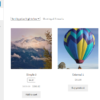
In my case, I uploaded a WooCommerce product image called banner-ad.png. The image disappeared from the shop loop—no broken image icon, no error message—just a blank space. Checking the browser dev tools revealed the error:
net::ERR_BLOCKED_BY_CLIENTThat’s a clear sign that the browser extension silently blocked the file because it matched one of its internal rules.
Why This Is a Problem
Product images are essential. If they don’t load, your product layout breaks, your store looks unprofessional, and customers might leave. Worse still, this isn’t a server issue or a theme bug—it’s entirely client-side and difficult to diagnose unless you’re using an ad blocker yourself.
Best Practices for WooCommerce Image Naming
To avoid this:
- Don’t use filenames like
ad.png,banner.jpg,track-product.png, etc. - Stick with neutral names like
product-123.png,blue-shirt.jpg, orsku-445-image1.jpeg. - Rename your files before uploading them into WordPress/WooCommerce.
- Consider using a media renamer plugin to fix existing image names if needed.
Final Thoughts
This is one of those subtle WooCommerce issues that doesn’t show up until a customer (or you) uses an ad blocker. It’s a good reminder to test your store in different environments, and to name your media files carefully.