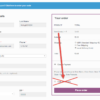
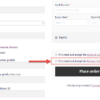
In a recent Business Bloomer Club Slack thread, a member reported that the Stripe payment form was not showing at checkout, regardless of which Stripe plugin they used.
They tested both the “WooCommerce Stripe Gateway” and “Payment Plugins for Stripe WooCommerce,” but neither displayed the form.
Even after disabling all other plugins and switching to the default Twenty Twenty-Five theme, the issue persisted. They also tried both the shortcode (“Classic Checkout”) and the Gutenberg block (“Checkout Block”) — still no luck.
SPOILER ALERT: The problem seemed unrelated to any particular plugin or theme conflict. The member then checked the browser console for JavaScript errors and found a very strange message: a currency-related error where “cloudways” appeared in place of an expected currency code like USD.
This unexpected value turned out to be the root cause. After locating and correcting it, the Stripe payment form displayed correctly. Let’s take a look at what caused this, how to detect similar issues, and what steps you can take to fix them.
Investigate Console Errors
When something isn’t loading on the frontend, your first step should be to open the browser console (Right-click > Inspect > Console tab) and look for JavaScript errors.
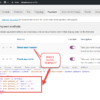
In this case, the console showed a Stripe-related error indicating that the currency was invalid — it displayed “cloudways” instead of something like “USD,” “EUR,” or “GBP.”
Stripe expects a valid ISO currency code, so this caused the payment form to silently fail.
This was a clear indicator that something in the database was off — even though there were no visible signs in the WordPress admin panel.
Check WooCommerce Currency Settings
To confirm the currency mismatch, go to:
WooCommerce > Settings > General > Currency Options
If everything looks normal there, you may need to dive deeper — specifically into your WordPress database. You can use a plugin like WP phpMyAdmin or access your database directly via your hosting control panel.
In the case discussed in the thread, the invalid string “cloudways” had been saved to the database instead of a proper currency code. Once replaced with a valid value (e.g., “USD”), the Stripe payment form began to load as expected.
Why Would a Wrong Currency Be Saved?
That’s the strange part. According to the member, their store had never used Cloudways hosting. The theory is that some plugin — possibly a legacy one, or a misconfigured import — wrote “cloudways” into the database where the currency code should be. They had previously used a different payment gateway (Bambora), and the issue only appeared after switching to Stripe.
Whether it was caused by a plugin, a mistaken database operation, or even a data migration gone wrong, the important takeaway is that invisible misconfigurations like these can lead to critical issues.
How To Fix a Broken Stripe Payment Form
Here’s a step-by-step checklist if your Stripe form is not showing:
- Check your browser console for errors — this helps pinpoint whether Stripe is silently failing.
- Switch to a default theme and disable all plugins except WooCommerce and Stripe.
- Verify the currency settings in WooCommerce settings.
- Inspect your database for odd values, especially under the
wp_optionstable and option names likewoocommerce_currency. - Double-check your checkout page is using the correct shortcode or block.
Wrapping Up
A missing Stripe form can be incredibly frustrating, especially when there are no apparent issues on the frontend or in your settings. As this case shows, something as simple — and odd — as a wrongly saved currency code can completely break payment functionality.
Always check your browser console first, and don’t be afraid to look under the hood of your database when things don’t add up.