WooCommerce: Send Email to Admin Every 3 Hours (Cron Job)

This snippet consists of many WooCommerce tasks: setting up a “WordPress Cron Job” (i.e. schedule a hook that runs on a specific time interval), getting the WooCommerce completed orders from the database, and finally sending a simple email to the store admin.

Complex, but as usual you can simply copy/paste and re-adapt it to your unique specifications. For example, I’m using it to send a survey email to each customer who has placed an order. There are thousands of applications, so this is just the start. Enjoy! Continue reading WooCommerce: Send Email to Admin Every 3 Hours (Cron Job)

WooCommerce: How to Set Different Prices Based on User Role?

B2C WooCommerce stores can also have a B2B section. Wholesalers can offer different prices based on different criteria. Subscription stores can offer lower prices to current members.

Either way, setting different WooCommerce prices for different users (“based on user role”) is not that difficult. All you need is a plugin (or a stack of plugins, depending on your custom requirements), and you can immediately show different prices if the logged in user has a specific role or “capability”, as well as targeting active memberships, active subscriptions or other criteria.

If you want to learn more about user roles and capabilities, I suggest to take a look at the WordPress documentation: https://codex.wordpress.org/Roles_and_Capabilities – you’ll know WordPress has 6 default roles (administrator, editor, etc.) and that WooCommerce adds another one (customer). Other plugins can set additional roles – for example https://wordpress.org/plugins/members/ by Justin Tadlock, a very popular WordPress developer.

So, while “targeting” user roles is quite easy, the only difficult part is to choose the right “user role based pricing” product. As usual, when picking a plugin, you always need to consider its functionalities as well as the quality of its support team, long-term reliability, code cleanliness, frequent updates and total number of sales.

Today, we’ll take a look at the plugins I recommend, together with their pros and cons. If you use different stacks or custom functionalities, feel free to interact via the comments.

Continue reading WooCommerce: How to Set Different Prices Based on User Role?

WooCommerce: Which Subscriptions Plugin Should You Buy?

Setting up a recurring revenue stream is one of the hottest ecommerce money-making strategies. And there is no doubt that, no matter whether you sell cakes, audio books, services, rentals, there is always room for a “subscription” product.

Think about selling a product once, and then seeing automatic renewal orders come through. And where the customers’ credit card is automatically charged. Yes, this can be done with a “WooCommerce Subscriptions” plugin.

Though, it comes at a cost (besides, it’s a subscription you have to purchase from a WooCommerce plugin developer to guarantee on-going bug fixing, support and maintenance!), with the reason being you can’t really code such a delicate functionality on your own (with a snippet for example). Subscription plugins are about money, revenue, automatic charge operations, tokens, error handling, retrials and other complex things – at this stage you have no other choice than purchasing an out-of-the-box solution: a reliable WooCommerce Subscriptions plugin.

The hard part here is deciding which subscription plugin is the best fit for you as a user and for your WooCommerce store. You also need to consider things such as integration, compatibility, UX, payment gateways, support (my favorite), code quality, functionality roadmap, maintenance, long-term reliability and – also – price.

This ultimate review guide goes through my top 3 choices. From $49 to $199, you have a full range of products, and each one offers the same exact thing: recurring payments.

So, what’s the difference? Which one should you pick?

Continue reading WooCommerce: Which Subscriptions Plugin Should You Buy?

WooCommerce: Disable Update Notifications @ WordPress Dashboard

We talked a lot about safely updating WooCommerce. The same applies to WordPress core, other plugins, themes… WordPress is such a delicate piece of software that you should ALWAYS know what to do before actually doing it πŸ™‚

Sometimes, website managers feel great about clicking on that “Update Now” link in their WordPress dashboard. It seems – and it is – so easy. Problem is, they’ll likely break the website.

The best way of doing this properly is to run the updates (as well as custom code, plugin tests, design changes) on a “staging environment“, which should be provided by your hosting company.

Either way, those “Update Now” links are too dangerous. Only you (the developer) need to know that – while it’d be better if the other users who have access to the dashboard didn’t see anything and concentrated on WooCommerce orders or WordPress post and content editing.

Clearly, there is a way to disable the update notifications on a per-user basis or, even easier, to only have 1 user (possibly you) see these. The snippet is a little complex, but there is a lot of literature online – this is the one that worked for me! Continue reading WooCommerce: Disable Update Notifications @ WordPress Dashboard

WooCommerce: Always Show Single Variation Price @ Single Product

When a variable product has the same price for all variations, a unique price is shown to website users i.e. the one at the top of the page. However, this behaves differently when each variation has its own unique price – in this case the single variation price shows after a variation is selected.

Now, this can be good or this can be bad – it depends. So in this snippet we’ll see a quick fix to make this behavior consistent i.e. showing the variation price after selection every time, no matter the conditions.

Thankfully, it’s literally one line of PHP. Enjoy!

Continue reading WooCommerce: Always Show Single Variation Price @ Single Product

WooCommerce: Rename Product Description Tab Label @ Single Product Page

Product tabs show on the single product page, right below the image gallery. Tab labels are “Description”, “Additional Information”, “Reviews” by default – but what if you wish to rename them into something more relevant to your users?

Here’s a simple PHP snippet you can copy/paste into your child theme’s functions.php file to immediately change the “Description” tab name – enjoy πŸ™‚

Continue reading WooCommerce: Rename Product Description Tab Label @ Single Product Page

WooCommerce: Remove “Description” Heading @ Single Product Tabs

When you are on the single product page, and you have a non-empty product long description, a “Description” tab appears below the product images. Unfortunately, not only the tab label is “Description”, but also the tab H2 heading. This sounds and looks horrible, so here’s a way to completely remove it.

Alternatively, you can use this other snippet in order to rename it: https://businessbloomer.com/woocommerce-rename-product-description-single-product-page/ Continue reading WooCommerce: Remove “Description” Heading @ Single Product Tabs

WooCommerce: Send a Custom Email on Order Status Change

If you use custom WooCommerce order statuses, sending emails is quite complex because you need to code a full custom email PHP class.

At least on paper!

In this workaround, we will actually “use” one of the existing email classes (note: it must be active in your WooCommerce email settings in order to work), change the subject and heading, and trigger it – like if it were a custom order status email.

Enjoy!

Continue reading WooCommerce: Send a Custom Email on Order Status Change

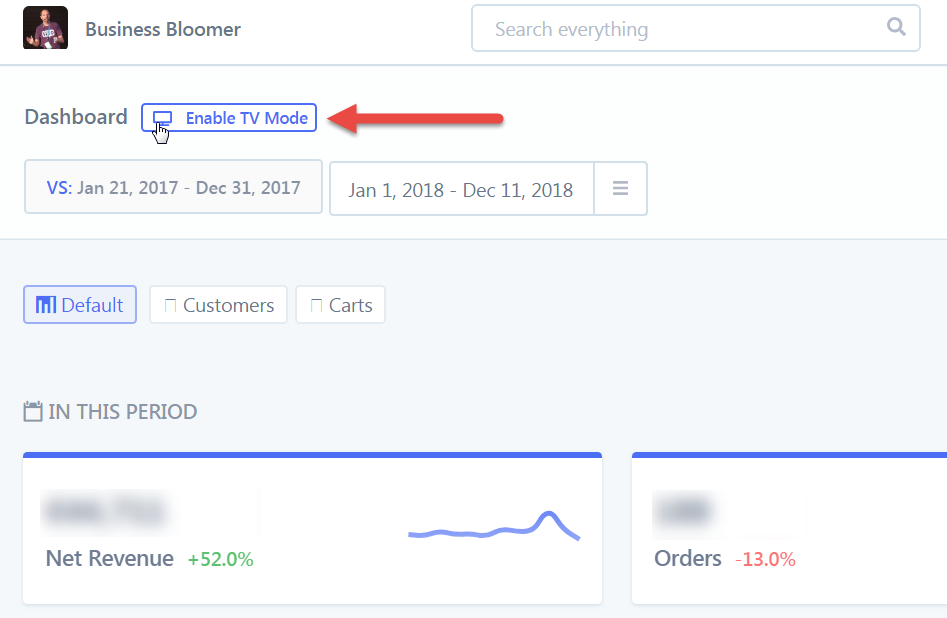
WooCommerce: How to Watch Orders & Data in Real-Time on TV?

Maybe you run a busy WooCommerce store from your warehouse. Alternatively, you have a spare TV screen in the office and don’t know what to do with it. Even better, you’ve been asked to show orders in real time, as they come in. Possibly, you’ve looked for a way to show data and statistics in real time without refreshing your Google Analytics dashboard or the WooCommerce Reports section.

What we’re talking about here is specifically finding a way to show your WooCommerce real-time orders, custom stats dashboards and custom graphs on a TV screen.

And today this is possible thanks to a new feature released by Bryce Adams, founder and developer of Metorik (of which I’m an active customer as you can see from the screenshots).

We already covered the ins and outs of advanced WooCommerce tracking (i.e. the WooCommerce default reports are quite poor, so I’ve introduced you to 2 alternatives there), so I don’t want to repeat myself in this blog post.

So, how do you enable real-time tracking and order notifications on a TV screen? Continue reading WooCommerce: How to Watch Orders & Data in Real-Time on TV?

WooCommerce: Add to Cart Quantity Plus & Minus Buttons

Here’s a quick snippet you can simply copy/paste or a mini-plugin you can install to show a “+” and a “-” on each side of the quantity number input on the WooCommerce single product page and Cart page.

The custom code comes with a jQuery script as well, as we need to detect whether the plus or minus are clicked and consequently update the quantity input. jQuery might look difficult to many, but the beauty of this is that you don’t need to have a degree in jQuery – just copy/paste the code or install the lightweight plugin and see the magic happen.

Continue reading WooCommerce: Add to Cart Quantity Plus & Minus Buttons

WooCommerce: Display “New!” Badge on Recent Products

We already have a nice “Sale!” badge by default with WooCommerce – this shows on the Shop page once certain conditions are met.

Now, what if we wanted to show a “New!” badge for products published in the last 30 days? This would certainly grab the customer attention, and also communicate the fact your shop is constantly updating with new products and content (well, good for Google too, right?).

Well, here’s a simple snippet for you; simply copy/paste into your functions.php and magically a “New!” badge will show (note: CSS is not provided, you’ll need to adjust it based on your current theme and custom styles).

Continue reading WooCommerce: Display “New!” Badge on Recent Products

WooCommerce: Display Required Field Errors “Inline” @ Checkout

If you’re familiar with the upcoming Gutenberg editor, you’ll know there have been a million doubts in regard to accessibility. So, accessibility matters – and WooCommerce has a few issues as well.

One interesting accessibility fix is the error notification system on the checkout page. Yes, the missing fields error show on top of the page when trying to place an order, but once you scroll down to fill them out again you might need a reminder of which field is missing without having to scroll back up to check the error.

This is quite difficult to explain, so take a look at the screenshot. The suggestion here is to also add “inline” error notifications (“XYZ is a required field“) right above each field, so that the user knows exactly what to do. So, let’s see how it’s done.

Continue reading WooCommerce: Display Required Field Errors “Inline” @ Checkout

WooCommerce: 27 SEO Tips (For Non-Techies)

I had the pleasure to speak at WordCamp Milano 2018, and I had a blast! I believe the topic was pretty interesting, so you all deserve a long post recap with actionable tips and screenshots to understand basic WooCommerce SEO (video of the presentation will be available soon).

The following WooCommerce Search Engine Optimization tips are mostly non technical, and are aimed at WordPress and WooCommerce users who never heard of β€œschema”, β€œlong tail”, β€œ301” and β€œhreflang” (although if you did, please have a read anyway, make sure to post a comment and contribute to this post with your expertise).

The thing is – SEO is never going to die. Besides, Google & co. constantly improve their website ranking algorithms. This means what you learned 5 years ago in regard to SEO might not work today, and what you learn today might not work in 2 years time… you get the point.

In this blog post, we will analyze and study 27 evergreen SEO factors for WooCommerce websites. These should be applied (or not applied, as there are many “not to do” tips as well) to your ecommerce website at all costs if you believe you deserve better ranking (who doesn’t?). And as they’re evergreen, they’re likely not to go away for a few years at least πŸ™‚

So, let’s get started!

Continue reading WooCommerce: 27 SEO Tips (For Non-Techies)