WooCommerce: Display Selected Variation Info (price, weight, etc.) @ Single Product Page

We already saw how to get the “Variation ID” from the single product page once product attributes dropdown are selected. In that tutorial, we ran a jQuery “change” event once “input.variation_id” got updated.

However, that only gives us access to the variation ID. What if I need to read the variation price, stock quantity, SKU, weight, and so on? Well, in such case, we need different code. Enjoy!

Continue reading WooCommerce: Display Selected Variation Info (price, weight, etc.) @ Single Product Page

WooCommerce: Save $$$ With Plugin Bundles

When creating and designing an ecommerce store, WooCommerce plugins are an excellent way to add new features and functionalities. But the struggle to find the right, suitable, and affordable plugins can be taxing and time-consuming – especially when there are so many to choose from. 

With such an overwhelming choice of plugins, purchasing and using them individually can get expensive as they often come with subscription fees.

On top of that, using too many plugins from different vendors can cause compatibility issues; not all WooCommerce extensions work flawlessly together, especially from different plugin developers. 

Besides, too many (bloated) plugins can slow down your website and have a negative impact on search engine rankings.

To avoid these issues altogether, some vendors offer “plugin bundles” or “club subscriptions”: with a single subscription you can get access to several, distinct WooCommerce plugins all at once – without compromising your store’s performance and safety or burning a hole in your pocket. 

So, let’s look at the top WooCommerce plugin bundles vendors and see if you can create a fully-functioning ecommerce store with a single purchase.

Continue reading WooCommerce: Save $$$ With Plugin Bundles

WooCommerce: Get All Shipping Zones & Rates

As an advanced WooCommerce developer, at some stage you’re really going to need this PHP function, the same way you often browse through Business Bloomer’s WooCommerce visual hook guides or the product / order / cart getters.

This time we go study how to “get” the shipping zones and rates, because it’s likely that you will need to loop through them when you need to display shipping rates somewhere, or for other custom functionalities. Enjoy!

Continue reading WooCommerce: Get All Shipping Zones & Rates

WooCommerce: Premium Invoicing Solutions

No matter what products or services you sell, billing and invoicing are integral to every business. 

An invoice contains every important piece of information related to a purchase – from the customer’s details to the due amount and agreed-upon mode of payment – and provides a record of the sale for both you and the customer. 

Besides being a critical accounting and legal requirement, they also help you track the revenue coming from sales, understand buying patterns and plan your inventory accordingly. 

But as important as it is, generating PDF invoices and sending them to every customer manually can be very time-consuming and prone to errors. 

Luckily, there are some excellent plugins in the WooCommerce ecosystem that can streamline and automate the invoice generation process for you. These PDF invoice plugins can create professional-looking, foolproof invoices and send them to customers on your behalf, making your business more systematic and efficient. 

Last week we saw a list of free WooCommerce invoicing pluginsthis time we’ll go through their premium versions, so that you can get a full picture of their full functionalities.

Let’s explore them!

Continue reading WooCommerce: Premium Invoicing Solutions

WooCommerce: How to Offer Advanced Discounts

Offering discounts is a powerful, time-tested strategy to entice customers and boost sales. 

That’s because customers always appreciate a good deal – and helping them save money on products/services they’re interested in is a sure-fire technique to attract them. In fact, nearly 90% of shoppers used a coupon code last year, which shows how much customers value discounts. 

Discounts can also help you bring more traffic to your website, encourage shoppers to buy more, and thus, increase sales and revenue. So, they’re a win for both sides. 

The good news is WooCommerce offers a solid coupon functionality by default to help you create discounts on your store. 

While it’s great to get started, WooCommerce Discount plugins can come in handy for more advanced features like bulk-generating coupons, restricting discounts to specific users, or creating deals like Buy One Get One (BOGO).

This article will explore some plugins that can help you implement a discount strategy on your store in just a few clicks and “woo” your customers. 

Let’s dive in!

Continue reading WooCommerce: How to Offer Advanced Discounts

WooCommerce: How to Build a One-Product Website

Crocs started by selling just foam clogs, and now they’re a billion-dollar company. Casper earned millions selling only mattresses, while Sara Blakely became one of the youngest self-made female billionaires with Spanx, which sold only underclothes initially. 

Can you guess what all these brands have in common? It’s that they started off by selling just one product, built their entire brand around it, and yet became successful. 

Today, most eCommerce businesses sell multiple products – because of the presumption that the more products you offer, the higher chances of converting visitors and making a sale. But from managing operations to inventory, a store with many products comes with its own problems.

On the other hand, selling just one product can streamline your store’s operations and make inventory management and handling orders easy. 

It allows you to focus all your energy and resources on creating, marketing and improving a single product. If done correctly, this can help you build a significant brand value – as people will start associating your store with your flagship product, making you an expert in your market and helping you stand out from your competitors. 

Given its benefits, creating a one-product store is an excellent idea – all you practically need is the right product for your customer’s needs and a solid, easy-to-navigate website. 

Lucky for you, this article will help you with the latter, taking you through all the steps of creating a fantastic WooCommerce website for your one-product store

Let’s begin!

Continue reading WooCommerce: How to Build a One-Product Website

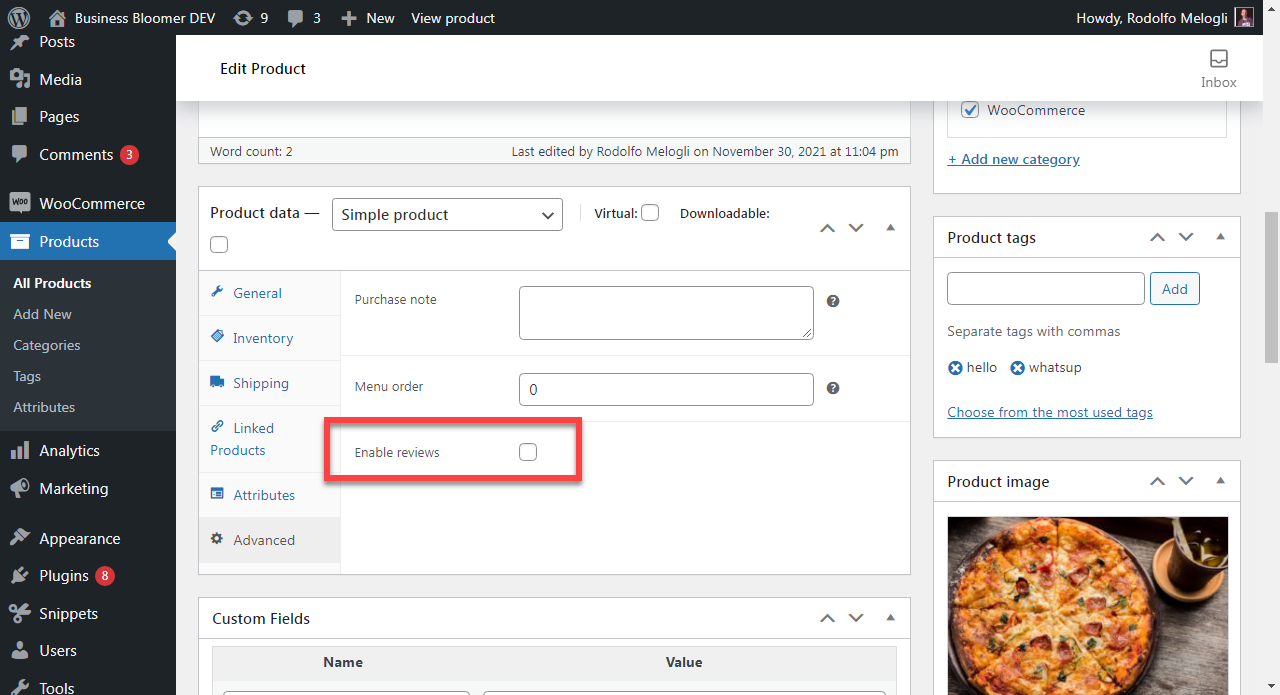
WooCommerce: Define Product Settings Programmatically e.g. Enable Reviews, Sold Individually

In WooCommerce, everything is easy until you have a dozen products to manage. But once you start scaling, and maybe need to import hundreds of items, right then is when you go looking for shortcuts.

Problem is – there are single product settings that you must enter manually for each product (or do it in bulk anyway) such as tax status, tax class, shipping class, sold individually, enable reviews and more; you could keep repeating your manual setup operations or fine-tune your bulk editor system to get that done, but what if there were a few lines of code that would simply “set” whatever option you need for ALL products, without worrying whether that specific option is set or not set in the single product edit page?

For example, it happened to a client of mine that we forgot to “enable reviews” on 10,000 imported products so we were left with two choices: re-run the product import, or find something smarter. And the latter is what we’ll cover today.

So, how do you “override” or “force” a specific WooCommerce single product setting without worrying about its actual per-product value, so that products do behave all the same? Here are a couple of ideas. Enjoy!

Continue reading WooCommerce: Define Product Settings Programmatically e.g. Enable Reviews, Sold Individually

WooCommerce: Top Quick View Plugins

Imagine if your customers didn’t have to visit a separate product page every time they wanted to check out a product. They could see product details right from the page they’re on and avoid going back and forth between the store and product pages

Sounds convenient, right?

This is exactly what a quick view feature on your WooCommerce store can do. 

It allows shoppers to view product images, features, and prices from the shop page through a popup window. This way, they can see if they like the product and add it to their cart or simply close the popup and continue browsing items. 

That’s not it. By making product surfing and shopping fast and hassle-free, the quick view feature can also help you improve customer experience and increase your store sales and revenue. 

Although a pretty useful feature, WooCommerce doesn’t have any default settings to enable a quick view button in your store. 

The good news is that there are some great quick view plugins you can use to add this functionality to your shop and optimize it for sales. 

We’ve done the legwork and compiled a list of seven of the best WooCommerce quick view plugins you can use for your online store. Let’s dive in!

Continue reading WooCommerce: Top Quick View Plugins

WooCommerce: Winning With a Cross-Sell Strategy

If you’ve experienced the difficulty and high cost of acquiring new customers, you’re not alone. The estimated probability of selling to a new prospect is only five to 20 percent. Compare that to the probability of selling to an existing customer: 60 to 70 percent.

That’s not all. Depending on your business and your industry, it can be five to 25 times more expensive to acquire a new customer than it is to retain one you already have. That’s despite all your pre-sales preparation.

As you can see, retaining your existing customers – or those who show an intent to buy – is paramount. How to increase revenue from them, however, continues to elude many businesses.

Fortunately, it doesn’t need to be hard. With the help of WooCommerce, you can easily create personalized recommendations to attract more sales from customers who are already interested in your offerings.

Using customized recommendations works to your advantage as internet users have grown fond of personalization. In fact, ninety percent of customers find personalization of their shopping journey appealing, and 71 percent feel at least some frustration when the experience is totally impersonal.

In this post, we’ll take a closer look at cross-selling and its benefits. We’ll also show you how you can create an effective strategy for your online store, using the WooCommerce Added to Cart trigger in MailOptin. Let’s get started!

Continue reading WooCommerce: Winning With a Cross-Sell Strategy

WooCommerce: Why Enable Sliding Cart?

Cart abandonments are a WooCommerce store owner’s worst nemesis – research suggests a whopping 69.8% of customers abandon shopping carts, causing a massive dip in sales and revenue. The same study also revealed that high and unexpected shipping charges, complicated checkout processes, and inability to see the order total are some major reasons behind cart abandonment. 

But what if there were ways you could overcome these problems and increase conversions? 

Well, we already covered a possible solution here, so we’ll add to that today by looking at floating cart plugins. 

These tools can help your customers view their shopping cart on any page of your WooCommerce store, saving them the back and forth between the page they’re currently on and the WooCommerce cart page. 

Customers can see the items they’ve added to the cart, the order total, shipping costs, and even check out – all without going to another page. This can help smoothen their experience at your store and fasten the buying process, translating into more sales and profits for you.

This article will explore some popular WooCommerce floating cart plugins you can use to leverage this feature on your store. But first, let’s understand how floating carts work and help your online store generate more sales. 

Continue reading WooCommerce: Why Enable Sliding Cart?

WooCommerce: How to Generate Invoices For Free

Running an online store is no easy feat.

You have to take care of order management, inventory, customer relations, production, marketing, and so much more.

A simple business process like invoicing doesn’t seem like it will take too much of your time, but it often ends up doing so.

That is why your best bet is to automate invoice generation. That way, you can attend to the revenue-generating activities that will let you take your business to the next level.

If you run a WooCommerce store, you know it comes with many useful functionalities but not invoicing automation. But the good news is you can choose from many great invoicing plugins available to do the heavy lifting. 

We’ve done the legwork and prepared a list of free WooCommerce invoicing plugins you can use to put your invoice generation on auto-pilot.

Continue reading WooCommerce: How to Generate Invoices For Free

WooCommerce: How to Bulk Edit Product Categories

Using WooCommerce product categories is one of the best ways to help your shoppers find what they need quickly and improve their experience at your store. 

As a store owner, organizing products into categories will improve product discovery and business efficiency by helping you analyze sales and customer buying patterns better. Moreover, it’ll give a structure to your online store, which is a critical aspect of SEO and can help you rank higher in search results. 

These points make a strong case for creating product categories in your store – the good news is that it’s also fairly simple to do this with WooCommerce. 

However, the real struggle begins when you have to edit these categories – adding new products, removing items or overwriting them into a new one for example.

Performing these actions on one or two categories may not hurt, but editing a large number of them individually can be a challenge. 

Luckily, there are multiple ways you can bulk edit your product categories to save on time and boost efficiency. 

In this article, we’ll dive into how you can edit product categories en masse using WooCommerce’s default settings. For more advanced editing options, it’s best to go for plugins – so, we’ll also explore some great plugins you can use for this purpose.

Let’s begin!

Continue reading WooCommerce: How to Bulk Edit Product Categories

WooCommerce: Google Ads, Merchant Center, Adsense, Meta Pixel Integrations

While organic strategies like SEO are great for increasing traffic and conversions for your store, sprinkling some paid advertising into your marketing efforts can give it a much-needed push. 

Paid ads offer an excellent way to increase your WooCommerce store’s reach, exposure, and sales. In fact, a survey suggests that the total digital ad spending will reach a whopping $455.30 billion by the end of 2021 – this number shows the increasing importance of paid ads and why you should leverage them for your business. 

But whether you display ads on your store to earn extra revenue or create ad campaigns to market your products, managing ads can be challenging and time-consuming. 

Fortunately for you, there are some fantastic ad automation plugins that can help you create, run, and track ad campaigns, all from scratch. 

This article will explore some WooCommerce plugins that you can use to automate your advertising campaigns. But first, let’s take a quick look at how these plugins work. 

Continue reading WooCommerce: Google Ads, Merchant Center, Adsense, Meta Pixel Integrations

WooCommerce: Rename “Read more” To “Out of stock” @ Shop

There is an unfortunate (IMO) add to cart button naming on the WooCommerce shop page / category pages / product loops. When an item is out of stock, the “Add to cart” (or “Select options” for a variable product type) button label will turn into “Read more”.

To be honest, that doesn’t really say much to the end customer. It’s quite confusing and doesn’t make much sense.

Today, we’ll see how to change that “Read more” label into something more comprehensible: “Out of stock”. A super easy trick. Enjoy!

Continue reading WooCommerce: Rename “Read more” To “Out of stock” @ Shop

WooCommerce: How to Start an Affiliate Program in 4 Steps

There are many different ways to reach potential new customers and grow your business. However, most of these methods cost money regardless of whether you achieve the desired results.

That’s where affiliate marketing comes in. It is a popular marketing model where you recruit third parties to drive people to your WooCommerce store and purchase your products. 

With the right motivation and incentives, these external marketers can be just as indispensable as an in-house marketing team. Even better, you’ll only pay for successful conversions

If you have a WooCommerce store, it’s easy to create your own affiliate program. Once your program is up and running, you can start signing up affiliate partners. These people will then do all of the hard work for you!

Every time a customer makes a purchase after following an affiliate link, the marketer will get a cut of the profits, and you get to keep the rest. It’s a win-win situation for you and your affiliate partner. Maybe that’s why affiliate spending is forecast to reach $8.2 billion by 2022!

In this post, we’ll discuss why using affiliate programs is one of the most effective ways to grow your business. We’ll then show how to create an affiliate program for your WooCommerce store in four easy steps. Let’s get started! 

Continue reading WooCommerce: How to Start an Affiliate Program in 4 Steps