WooCommerce: Prevent Orders From Blacklisted Email Addresses

In some cases, you may need to block certain customers from completing orders on your WooCommerce store.

This could be due to fraud prevention, policy violations, or simply wanting to prevent repeat offenders from making purchases. Thankfully, WooCommerce provides the flexibility to implement an email blacklist with just a few lines of code.

In this tutorial, I’ll show you how to add a simple email blacklist using a custom function that checks the customer’s email at checkout. By adding these 8 lines of PHP to your theme’s functions.php file, you’ll be able to prevent orders from specific email addresses efficiently. Enjoy!

Continue reading WooCommerce: Prevent Orders From Blacklisted Email Addresses

WooCommerce: Edit Custom Field @ Order Admin

Adding a custom field to your WooCommerce checkout is a breeze. It’s a fantastic way to collect extra information from your customers. It could be a custom Billing field, a Shipping field, or a completely unrelated custom field.

But while you can easily view the custom field data in the backend, editing it directly from the order admin is a frustratingly locked feature. This presents a significant challenge for businesses needing to modify order details post-purchase.

Luckily, a bit of custom code can fix this, giving you the flexibility and control you need to manage your orders effectively.

Let’s dive in and explore how to overcome this hurdle. Enjoy!

Continue reading WooCommerce: Edit Custom Field @ Order Admin

WooCommerce: How to Sync Products, Stock and Orders Between Several Stores

Running multiple WooCommerce stores can be a recipe for success, but keeping your products and stock levels synchronized across them can quickly turn into a nightmare.

Imagine the frustration of a customer trying to buy a product that shows “in stock” in one store, only to find it out of stock when they checkout. Yikes.

But fear not! This tutorial is your guide to conquering inventory chaos with product and stock syncing. We’ll dive into the amazing benefits of syncing your WooCommerce stores (e.g. products, stock, orders, etc.) so you can streamline your operations and watch your sales grow.

This multi-store functionality typically requires the use of additional plugins or services designed to manage multiple WooCommerce sites – one such solution is the WooMultistore plugin.

Continue reading WooCommerce: How to Sync Products, Stock and Orders Between Several Stores

WooCommerce: Retrieve Paid Orders Only

The wc_get_orders function is the recommended method for fetching orders in WooCommerce due to its flexibility, safety, and adherence to best practices. It offers several advantages over using custom WP_Query or database queries. It’s also HPOS compatible.

You can specify various arguments to filter orders based on properties like status (pending, completed, on-hold, etc.), customer (ID, email), date range, order IDs, payment method, total, custom fields and more.

Today, I’d like to talk about paid orders – at the moment there is no way to filter out free orders with a wc_get_orders parameter, so we need to find a workaround.

My solution uses the “payment_method” parameter, which accepts a payment method ID (cheque, bacs, afterpay, paypal, stripe, woocommerce_payments, ppcp-gateway, klarna_payments, etc. based on the payment gateway plugins you use). Clearly, an order that comes with a specific payment method is a paid order.

Unfortunately you can only select one payment method (as opposed to an array), so we also need to do some array merging. Enjoy!

Continue reading WooCommerce: Retrieve Paid Orders Only

WooCommerce: Set Different Currency For Manual Orders

Business Bloomer website sells in USD only for the time being, as that seems to be the standard for WordPress plugin / products stores.

However, I prefer to invoice clients in EUR (I also switch PayPal and Stripe keys on the go). Which means, I needed to find a way to “set” a different currency whenever I create a manual order (which, by default, is in USD). So, here’s the fix!

Continue reading WooCommerce: Set Different Currency For Manual Orders

WooCommerce Cart item data from an external API?

I would like to save metadata in each item in the cart (collecting item data from an external API) and I would like this data to be maintained in the order.

I’m not interested in viewing it because it’s a metadata that serves me in the backend to process the order in the internal ERP.

Are there already any example snippets that can help me?

WooCommerce: Create Order From Contact Form Submission

So, I’ve built my own event management system for WooCommerce.

My objective was to embed a form on the event registration page, and then programmatically create a free WooCommerce order for that customer – so I can track the number of attendees (orders) and follow up with email automations (customers).

You can already see the system in action on the How to Contribute to WooCommerce Core” event page: you can clearly see an email input and a “Register Now” button inside the “You’re invited” section. That’s the form – actually a Fluent Forms plugin contact form.

And then there is a simple snippet that hooks into the Fluent Form submission, and conditionally generates a WooCommerce order.

In this post, you’ll learn about a quick way to create a Fluent Forms form on your WordPress site, about the “fluentform/validate_input_item_input_email” hook, and finally about the wc_create_order() WooCommerce function that, of course, let us generate an order automatically. Enjoy!

Continue reading WooCommerce: Create Order From Contact Form Submission

WooCommerce: Order Number Prefix / Suffix

As you know WooCommerce uses the “order ID” (which is also the ID of the order post in the database) as the order number. This displays in the “WooCommerce” > “Orders” table, on each line of the order, under the “Order ” column, as well as the order “quick view” window, the single order page and the customer’s My Account page.

But what if you need to add a prefix or a suffix to this number, so that this is in line with your business or invoice requirements?

Here’s the fix – enjoy!

Continue reading WooCommerce: Order Number Prefix / Suffix

Where to find the WooCommerce order source?

In Shopify, there’s an option to view the source of each order, specifically showing the last external link clicked before the purchase. This is useful for tracking where customers are coming from and measuring marketing performance.

So how can one see order attribution in WooCommerce based on the Last Click criteria? WooCommerce doesn’t provide this feature natively ***, but it does offer flexibility through plugins and custom scripts.

Is there a way to bring this information into WooCommerce Analytics or to generate a report like this in WooCommerce? There are certainly options to explore, but finding the right approach depends on your specific needs and setup.

Continue reading Where to find the WooCommerce order source?

WooCommerce: Deposit plugin with only 1 order?

I’ve tested a few deposit and balance plugins and they all seem to create an initial order for the Deposit, then a separate order for the Balance payment.

Does anyone know of a plugin that keeps all the payments in a single order?

I’m kind of thinking the answer is no due to the way payments are captured…. but am hoping there is!

In my case it is just for ease of the accountant reconciling – the products have a deposit and payment plan – so each product can have up to 6 orders to reconcile, which she is finding a nightmare.

WooCommerce: Get Order Tax Percentage

You’d think WooCommerce had an easy way to get the order tax rate percentage, the same way as you can get almost everything inside the “order object” with a single line of PHP. Well, that’s not the case unfortunately.

The reason is that probably each order can have multiple tax rates, and that tax is not only applied to product prices, but also optionally to shipping, fees and more.

So, how do we get the list of tax rates in a WooCommerce order? Here’s a quick snippet that you can use – enjoy!

Continue reading WooCommerce: Get Order Tax Percentage

WooCommerce: Limit Daily Sales For Cheap Products (Anti-Spam)

We could call this the “WooCommerce Anti-Spam Without a Plugin” series, while I attempt to fight against bad humans and very bad bots who love attacking the Business Bloomer checkout page with spam orders and fake user registrations.

My first attempts were (1) My Account registration anti-spam honeypot, (2) Checkout anti-carding-attack honeypot, and (3) Reducing the number of admin emails, but I can tell that (2) didn’t work, and I got another carding attack on a $9 product last weekend. Bots are smart.

Today, I’d like to share another anti-spam snippet that I’m currently testing on Business Bloomer. Most carding attacks, in fact, end up with the purchase of a single product in the $1-$9 range – which means that limiting the daily sales for specific, inexpensive, products may do the trick.

My code counts the times each product has been purchased during the day – and if a carding attack occurs, the product won’t be purchasable any longer until the end of the day. Because we’re talking about cheap products, it’s no problem for me to disallow legit sales as well for 24 hours. Use at your own risk, of course.

We already covered how to “Limit Sales Of A Product Per Day“, but this time I’d like to apply that to an array of products – and specifically all those that are under $10. Enjoy!

Continue reading WooCommerce: Limit Daily Sales For Cheap Products (Anti-Spam)

WooCommerce: Allow Order Editing For Custom Order Status

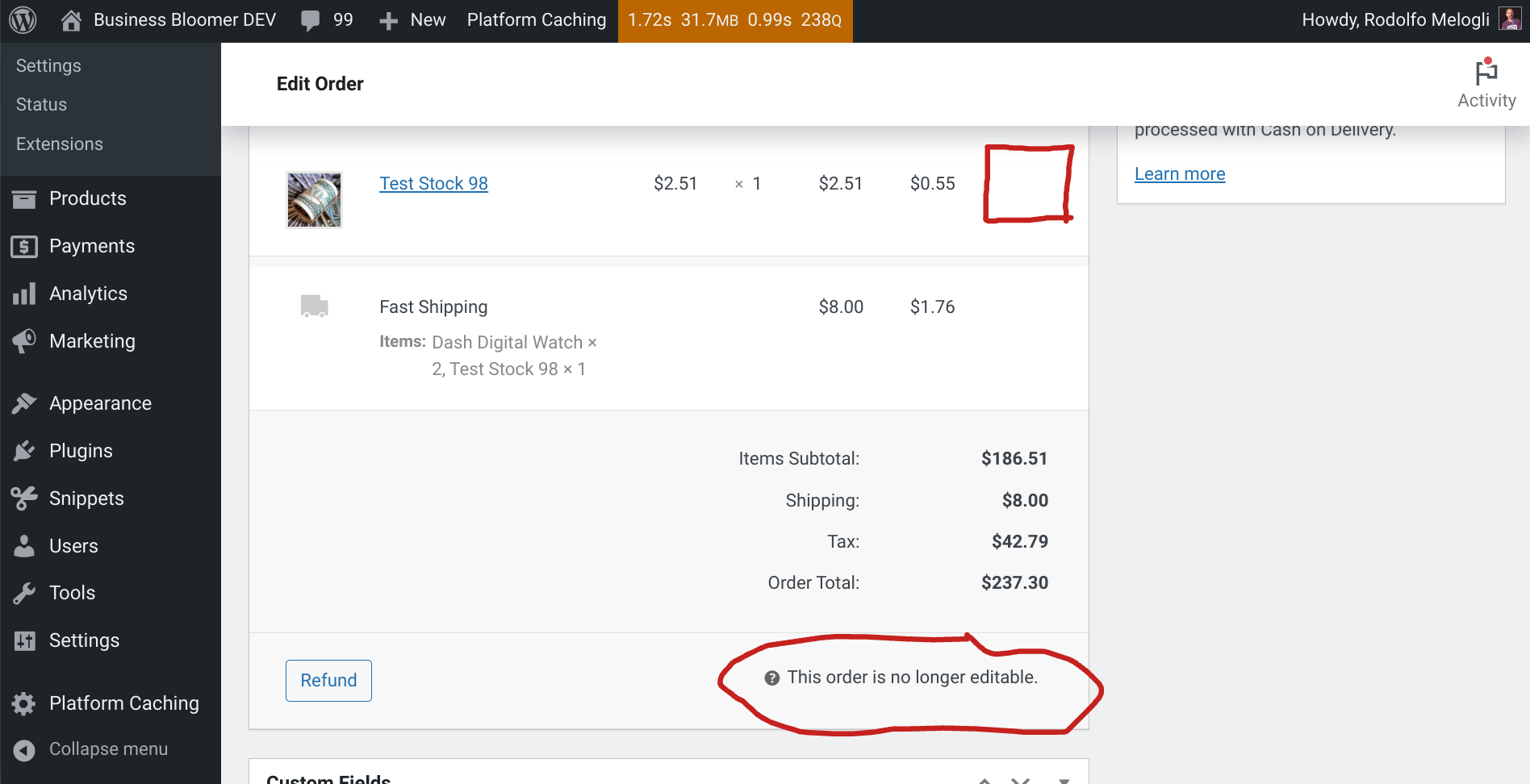
WooCommerce admins are allowed to “edit” an order only when this is in the “on hold” or “pending payment” status. By “edit” I mean having the chance of modifying or adding products, fees, shipping and recalculating the totals, which are not allowed once the order has been placed (“processing“, “completed“, etc.).

However, there are many reasons why you’d want to have the right to edit a processing, completed, or custom status order – of course as long as you don’t end up changing the total, as customers already paid at that stage.

Think about the following scenarios:

  • you customized the items table and added a custom field, and you want to set the custom field value when the order is “processing
  • you need to edit the shipping method name AFTER checkout, and you want to be able to rename it when the order is “completed
  • you need to add a fee and a discount of equal amounts (so that the total stays the same) before completing the order

Either way, let’s enable the little “pencil icon” on a custom order status, so that the admin can customize the order whenever they wish!

Continue reading WooCommerce: Allow Order Editing For Custom Order Status

WooCommerce: Add Product To Order After Purchase

On Business Bloomer I sell a bundle of products, and I use no Bundles plugin for that. So the challenge was to programmatically add a list of products to the order upon purchase, once the bundle product is purchased.

This is an amazing way to save time for the customer, as they don’t need to manually add each product to the cart. In the background, after a successful purchase, some magic code (that you find below) adds products to the order, sets their price to $0.00 (so that the order total is not altered), and saves the order. Enjoy!

Continue reading WooCommerce: Add Product To Order After Purchase